How to Start and Set Up a YouTube Channel for Beginners

Creating a YouTube channel is free.
Creating one that is clear, secure, and ready to publish takes a little more thought.
Your channel name, handle, description, branding, settings, and account access become the foundation for every video that follows. Set them up properly now, and you will avoid unnecessary changes later.
Need to understand the bigger YouTube income opportunity first? Read How to Make Money on YouTube as a Beginner.
This guide covers channel setup only. It does not cover monetization, equipment, editing, or a full first-video process.
Reality Check: A Channel Is Not Income Yet
A YouTube channel is the home for your content. It is not a business or income source by itself.
Views, subscribers, affiliate sales, clients, sponsorships, and ad revenue come later. They depend on useful content, audience trust, and time.
The good news is that you do not need to spend money to create a strong starting foundation.
You do not need:
A paid logo
A professional camera
An expensive studio
An editing subscription
Bought views or subscribers
A perfect website
Start with a clear purpose, a secure account, and a channel identity that makes sense.
Is YouTube Channel Setup a Good Fit for You?
This guide is useful if you want to build:
A personal brand around your skills or experience
A business or website-led channel
A faceless content brand
A channel that may later support products, services, affiliate content, or audience growth
Pause before creating a channel if you expect immediate income, plan to copy other creators’ work, or are unwilling to publish useful content after setup.
You do not need to show your face. A channel can use a brand name and a clear topic instead.
1. Decide What Your Channel Helps People Do
Do not start with a logo or banner.
Start with one clear sentence:
I help [specific audience] achieve [specific result] through videos about [clear topic].
Examples:
I help beginners understand realistic remote-work options.
I help busy adults learn simple online-income skills.
I help job seekers improve their professional confidence.
I help first-time creators understand faceless YouTube.
Your sentence does not need to be perfect. It needs to be clear enough to guide your channel name, description, and future content.
2. Choose a Personal Channel or a Brand Channel
A personal channel works when your public channel identity matches your real name and you expect to manage it alone.
A channel connected to a Brand Account is usually better when:
You want a business or brand name
You are creating a faceless channel
You want the channel separate from your personal identity
You may later add an editor, assistant, or partner
For a long-term business or media brand, the Brand Account route usually gives you more flexibility.
Keep control of the Google account and channel ownership yourself, even if another person helps you later.
3. Create the Channel
Use the Google account that you intend to control long term.
On YouTube:
Sign in.
Open your profile picture.
Go to your channel-management options.
Select Create a new channel.
Choose your channel name and handle.
Select Create channel.
For a business or brand name, choose the option to create a separate channel from your channel list.
Do not create several channels because you are undecided. Create one clear channel and build from there.
4. Choose a Clear Name and Handle
Your channel name is the public name viewers see.
Your handle is the unique name beginning with @. It appears in comments, mentions, Shorts, and your channel link.
Example:
Channel name:
Remote Career LabHandle:
@remotecareerlab
Use one of these naming formulas:
Brand Name + Topic
Audience + Outcome
Clear Topic Name
Your Name + Topic
Examples:
Better Work Online
The Job Search Reset
Simple Creator Systems
Maria Builds Online
Avoid names that are vague, hard to spell, full of numbers, too similar to a known brand, or so narrow that they will not fit after a few videos.
Before confirming your name, ask:
Can a stranger understand the general topic?
Will this still make sense after 30 videos?
Is the handle easy to type and remember?
Would I be comfortable saying this name out loud?
Do not spend days looking for a perfect name. Clear and usable is enough.
5. Verify the Channel Early
Complete phone verification before you need extra features.
In YouTube Studio, review Settings → Channel → Feature eligibility and follow the verification steps shown for your account.
Phone verification can unlock useful intermediate features, including longer video uploads and custom thumbnails.
Some advanced features may require channel history or additional verification. Do not panic if every option is not available immediately.
Build the channel properly, follow YouTube’s rules, and avoid shortcuts.
6. Add Simple Branding
Open YouTube Studio → Customization → Profile.
Your branding does not need to look expensive. It needs to be clear and consistent.
Profile Picture
Use:
A clear headshot for a personal channel
A simple logo for a business channel
A recognizable symbol or icon for a faceless brand
Avoid tiny text. Your profile picture appears very small across YouTube.
Channel Banner
Your banner should answer three questions:
What is this channel about?
Who is it for?
What can viewers expect?
Use this simple format:
[Channel Name]
Practical help for [audience]
Videos about [topic 1], [topic 2], and [topic 3]
Do not overload it with long paragraphs, too many links, or promises you cannot keep.
7. Write Your Description and Add One Useful Link
Your channel description should make one simple promise.
Use this template:
[Channel Name] helps [audience] achieve [result].
Expect practical videos about [topic 1], [topic 2], and [topic 3].Start here: [your main website or useful resource]
Example:
Career Reset Lab helps professionals explore realistic remote-work and online-income options.
Expect practical videos about remote jobs, digital skills, career decisions, and earning online.Start here: [your website link]
At the beginning, add only one important public link. This might be your website, free assessment, newsletter, or service page.
More links do not automatically create more trust.
8. Set the Important Basics
In YouTube Studio, review these settings before publishing:
Your country or region
Your channel audience setting
Basic channel keywords
Upload defaults
Channel permissions
Choose the audience setting carefully.
“Made for kids” means content directed toward children. It does not simply mean that a video is clean, educational, or family-friendly.
For upload defaults, keep a short description template ready:
In this video, you will learn:

[One-sentence summary]

Helpful next step:
[Your main link]
You can adjust individual video details later. The goal is to reduce repetitive setup work.
9. Protect the Channel From Day One
Your YouTube channel is connected to your Google account.
Protect it now:
Turn on two-step verification.
Keep your recovery email and phone number current.
Do not share your Google password.
Use YouTube Studio permissions if an editor or assistant needs access.
Keep ownership under your control.
Remove access when a contractor stops working with you.
Do not buy subscribers, views, or likes. Fake engagement creates weak signals, damages trust, and can put your channel at risk.
What AI Can Help With
AI can help you brainstorm names, compare handle ideas, draft a channel description, and create banner-text options.
AI cannot decide whether you have permission to use a name, logo, music track, image, or other asset. It also cannot responsibly decide who should control your account or whether your audience setting is accurate.
Use AI to reduce blank-page work. Use your own judgment to protect your channel.
Your 30-Minute Start Action
Set a 30-minute timer and complete these actions:
Write your one-sentence channel purpose.
Decide whether you need a personal or Brand Account channel.
List three possible channel names.
Check available handles.
Create the channel and complete verification.
Stop there.
Do not spend the day designing a logo or creating empty playlists. Your channel needs useful videos, not perfect decoration.
Common Setup Mistakes to Avoid
Waiting for Perfect Branding
Create one clear version of your profile picture, banner, and description. Improve them later when you have real content and real viewer feedback.
Choosing a Name That Says Nothing
A vague name such as “Dream Success World” does not tell people what they will get. Clarity beats vague motivation.
Sharing Your Password
Never share your Google password with an editor, freelancer, or agency. Use permissions instead.
Setting Everything as Made for Kids by Mistake
Choose this only when your content is specifically directed toward children.
Minimum Setup Checklist
[ ] Write a one-sentence channel purpose
[ ] Choose personal or Brand Account channel
[ ] Create the channel
[ ] Choose a clear name
[ ] Claim a usable
@handle[ ] Complete verification
[ ] Add a profile picture
[ ] Add a simple banner
[ ] Write a clear description
[ ] Add one useful public link
[ ] Review audience and basic settings
[ ] Turn on two-step verification
[ ] Keep ownership under your control
Continue Your YouTube Path
Primary Next Step
How to Create YouTube Videos: On-Camera, Faceless, and AI-Assisted Workflows
Your next step is to build a repeatable process for planning, creating, and publishing videos.
Alternative 1
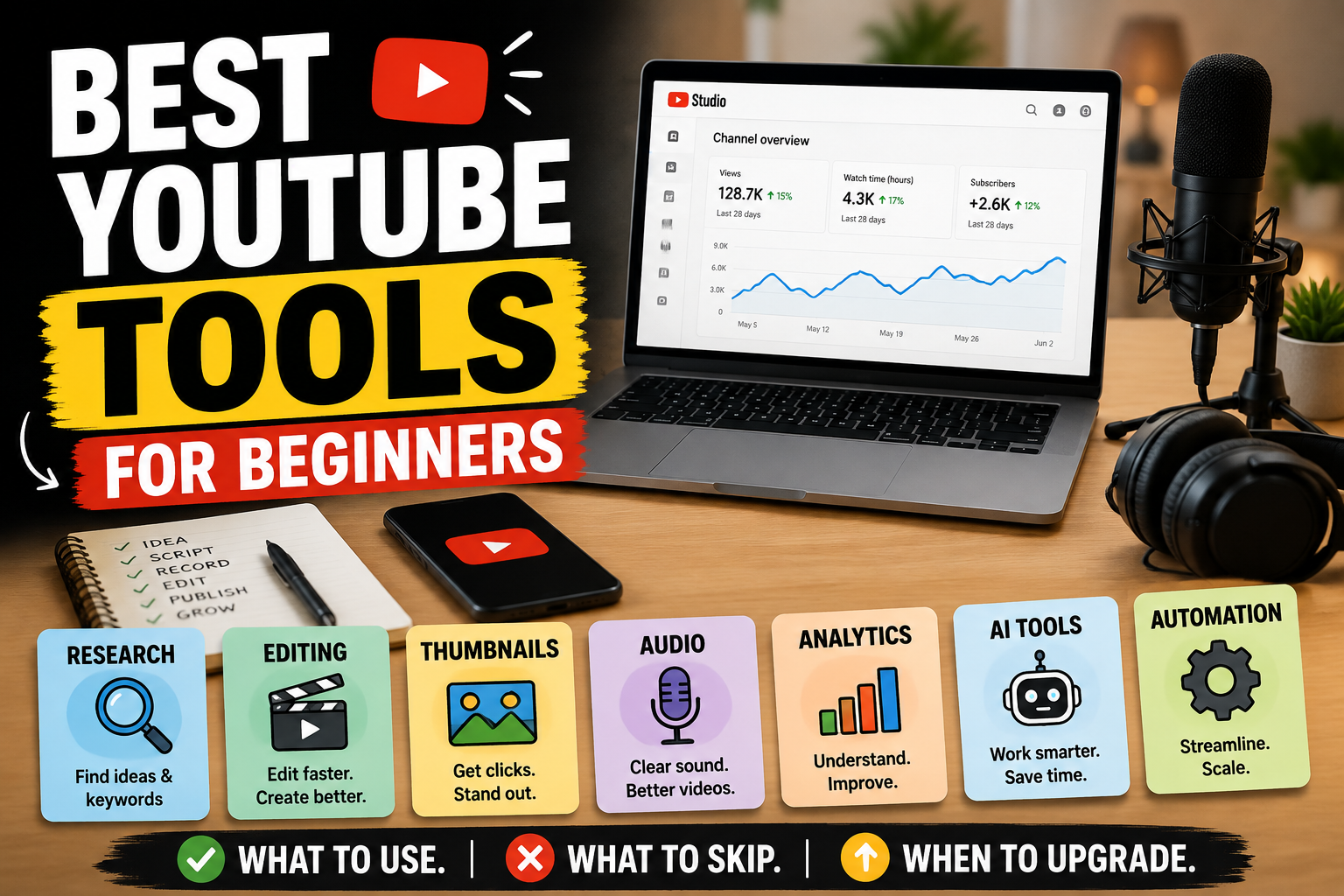
Best YouTube Tools for Beginners: Free, Paid, AI, and Automation Tools
Use this if you're ready to choose the tools that support your workflow.
Alternative 2
How to Monetize a YouTube Channel: YPP, Ads, Affiliates, Services, and Products
Explore this if your next question is how the channel can eventually generate income.
Take the RemoteShift Assessment
Not sure whether YouTube is the right online-income path for you?
Take the RemoteShift assessment to find a path that better fits your skills, time, budget, and goals.